Dragging without the sketch jumping
You drag a point and the sketch rearranges itself or flips over. In KapyCAD 2, dragging will follow four intent rules and nothing will jump when you let go.
Part 6 of the series Inside KapyCAD 2; the dragging described here is KapyCAD 2's, which hasn't been released yet. Dragging a point is probably the thing you do most in a sketch. You grab a corner, pull, and expect the shape to follow you with some common sense. When it doesn't, you notice straight away.
Last time we explained why we wrote our own constraint solver. This part is its companion: how dragging will use that solver, which is where a solver's internals show the most.
The problem
A sketch with freedom has, by definition, many ways to follow the cursor. If you drag the corner of a rectangle that doesn't have all its dimensions, the solver can stretch a side, rotate the whole shape, slide it… All of those answers satisfy the constraints. But usually only one is the one you expected.
With today's solver (PlaneGCS), a drag is a sequence of independent solves with several rescue passes around them. In the worst cases the shape rearranges itself in odd ways, because the solution the solver finds first isn't the closest to what you had, and a tangency or an angle switches sides mid-gesture without you asking. On big sketches, as we measured in Part 5, the p95 of frames goes past a second. And sometimes, when you let go of the mouse, the geometry makes one last little jump to its "real" position.
There's even a paradox: pulling on a point your constraints hold still is the most expensive gesture of all. The solver can't bring it any closer to the cursor, so it goes through every rescue pass before giving up. Nothing happens on screen, and yet it's the slowest thing you can do.
In KapyCAD 2, the fix will rest on a single idea: treating the cursor as a wish.
The cursor as a wish
As we described in Part 5, the new solver splits equations into hard, soft and weak. In a drag, your constraints are the hard ones, the cursor is a soft one ("this point, as close as possible to here") and everything you're not dragging carries a weak one ("stay where you were"), so of all the ways to follow the cursor, the solver will take the one that moves the rest of the sketch the least.
That has a practical consequence. If you pull a point towards somewhere it can't go (a point on a circle, dragged towards the centre), the geometry will stay as close as possible to the cursor, instead of failing or freezing. And if the point is fully defined, it won't move, because there's nowhere for it to go.
Four intent rules
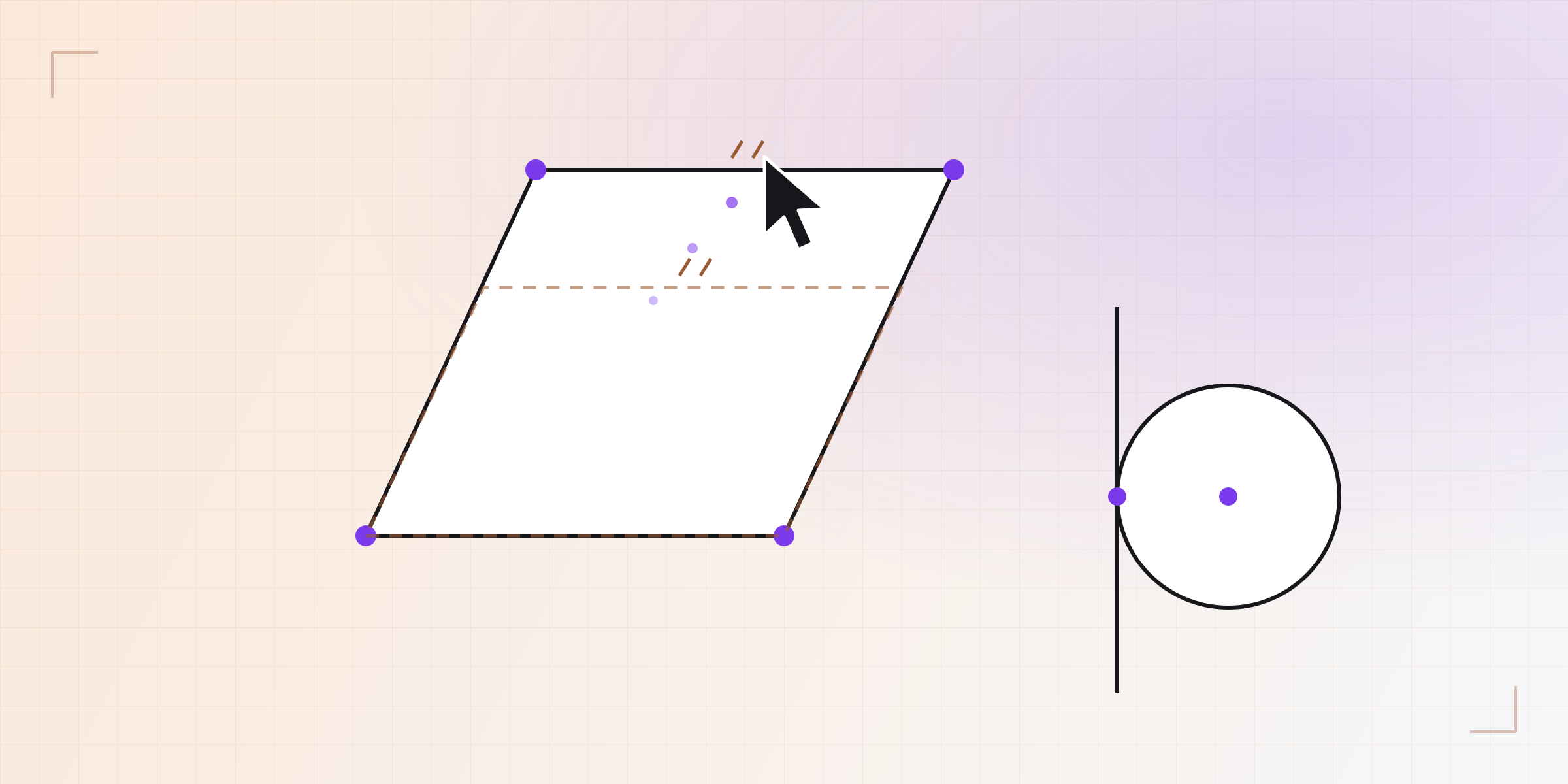
"Move the minimum" settles most cases, but there are situations where two answers move about the same amount and yet one is clearly what you meant. For those, dragging in the development build has four explicit rules.
- The rim of a circle: the radius changes. If you pull a point on the rim of a circle or an arc, the radius grows or shrinks and the centre stays put. If the radius has a dimension, then the whole circle moves instead.
- The end of a fixed-length line: it turns. The line turns about its other end before it translates.
- An edge: it moves parallel. If you drag a whole edge, it moves parallel to itself and its neighbours stretch to follow.
- A rigid block: it translates whole. A group that can no longer deform but can still move slides as a block. It only rotates if translating it can't reach the cursor.
All there is behind these rules is weights: a circle's centre "resists" moving a little more than its rim, and the far end of a line resists more than the one you're dragging. With those weights, the least-motion answer is the one each rule describes.
The rigid block has one extra trick. When the solver detects that a group of geometry is rigid, it moves it with an exact rigid transform instead of iterating. That's cheaper, and the group doesn't slowly deform through rounding errors.
Crossing to the other side, only if you ask
Part 5 showed that every tangency, parallel and perpendicular will store its orientation, and the "Flip" button in its menu will give you the other branch. During a drag that orientation will be respected. If you drag a tangent line towards its circle, the line will stop at the circle instead of passing through and popping up on the other side.
Sometimes, though, you do want it on the other side, and you'll be able to get there by dragging too: you just have to ask clearly.
In the development build, the solver handles each frame by first respecting every stored orientation. If that leaves the point you're dragging far from the cursor (more than half the distance you've moved the mouse), it tries flipping one or two nearby constraints that have two branches. If one of those trials brings the point at least twice as close, it keeps it.
That's what engineers call hysteresis: a band where the state doesn't change even though you're near the boundary. If you leave the cursor hovering on the boundary, both branches get almost equally close and the sketch keeps the one it had, with no flickering from one side to the other.
When it does cross, the frame reports it, and letting go will store the new side together with the positions, in the same undo step.
What you see is what gets saved
Each drag frame will always be solved starting from the saved sketch. It's a pure function: same saved geometry, same cursor position, same result. No state builds up over the gesture.
When you let go, the document core will replay the last frame (same sketch, same cursor position) and save that, so what you were looking at before letting go is what will be written.
While you drag, the document won't be touched: nothing downstream (the extrusions, the fillets, the solid) will be regenerated on each frame. When you let go, the geometry, any orientations that changed and the sketch's full diagnosis will be written at once, in a single undo entry.
We check this with the drag half of the fourth judge from how we test CAD software: it drags points and lines in the 602 sketches of the corpus, lets go, and verifies that what was saved matches the last rendered frame to within ten nanometres.
Fast
None of the above would be worth anything if each frame took a second. The target we set ourselves is that 95% of drag frames answer in 16 ms or less, one screen refresh at 60 Hz. We keep an eye on the spikes as well.
The frames will be solved by the drag helper we introduced in Part 4. Each frame returns the positions and little else: the full diagnosis, which takes several milliseconds on a sketch of around 200 variables, is left for when you let go.
The search for crossings has limits too. Trying to cross a branch costs extra solves, so it's capped at two constraints per frame and a few steps per trial. A branch the cursor clearly asks for is reached right away; if a trial needs more, it wasn't the clear case. During development, without those limits, the worst frame in the test reached 867 ms.
The same judge measures drag speed across the whole corpus: 602 sketches, 1,685 gestures and just over ten thousand frames. The 95th percentile has to stay under 16 ms, and in our measurements it does, including the calibration sketch that goes past a second with today's solver. Commit-time speed is measured separately, as Part 5 explains.
Part 7 covers how KapyCAD 2 will find the constraint that's redundant in a sketch, and how it will point you to it.
Written by
Sergio
Building Kapy CAD — parametric 3D modelling for 3D printing, in the browser.


