Which of your constraints is redundant?
From "your sketch is wrong" to "these two dimensions contradict each other". KapyCAD 2 will flag redundant or clashing constraints, and only after checking.
Part 7 of the series Inside KapyCAD 2; the diagnosis described here will be part of KapyCAD 2, which we're still building. Anyone who has used a parametric CAD tool has seen this message at some point: sketch over-constrained. And under it, half the screen in red. You know something is redundant, or something clashes, but you don't know what. So you start deleting constraints blindly until the red goes away, and quite often you take out one you actually needed.
In the last two parts we explained why we wrote our own sketch solver and how dragging will stop jumping. That leaves the other half of a solver's job: telling you what's wrong with your sketch in specific terms, such as "these two dimensions contradict each other" or "this constraint repeats what two others already say".
A wall of red
A numerical solver knows how to solve equations, but it doesn't always know how to explain why it can't. Today's solver in KapyCAD, PlaneGCS, builds its diagnosis on a heuristic: a rough rule that is almost always right and wrong in the odd cases. And in a sketch, odd cases show up every day.
The full list of what hurts is in Part 5; one example is enough here. A plate can go "over-constrained", with a dozen constraints in red, after you drag a point a quarter of a millimetre and without adding anything.
Today we filter out those false alarms with layers on top of the solver, but they're workarounds bolted onto code that isn't ours, and whose design doesn't fit what we need. With our own solver, the diagnosis becomes part of the solver itself, and for KapyCAD 2 we rebuilt it from scratch around one idea: don't say anything that hasn't been checked.
Degrees of freedom, for real
First, the count has to be right. The degrees of freedom (DOF) are the independent ways your sketch can still move. A loose point has two (left-right and up-down); every constraint that really holds something takes away one or more. When you reach zero, the sketch is fully defined.
The trouble is the word "really". A constraint can be on the list and take nothing away, because what it says is already said by others. Only the independent constraints count, and KapyCAD 2 will find them with an exact tool from linear algebra, the rank, which we explain at the end. The intuition: the rank is the number of different things your constraints say, and the DOF are what can move minus that.
Today's count sometimes lies, and tangency at a shared endpoint shows it well. You draw a line and an arc leaving the same point and ask for a smooth join. The classic way to write a tangency is "the distance from the arc's centre to the line equals the radius". It works in general, but once the contact point already sits on both elements, that equation goes flat: if you look at how it changes when you nudge the geometry a little, it doesn't change at all. For the count, that constraint does nothing, and the sketch looks like it has one more degree of freedom than it really has. One per join of that kind: a slot, with its two arcs joined smoothly to two lines, claims 9 degrees of freedom when it has 5 (where its two centres are, and its width).
In KapyCAD 2, a tangency at a shared endpoint will be a constraint of its own: it will say directly that the two directions at that point line up. That equation keeps its slope, so the count sees it. And when the rank can't know something for sure, the status will say so: a sketch whose freedom is unknown will be shown as unknown, never as "zero degrees free".
When a constraint is redundant
A redundant constraint is one that adds nothing: delete it and the sketch is just as defined. The textbook example is two horizontal lines with a parallel constraint between them as well. If both are horizontal they're already parallel; the third constraint is redundant.
The rank can spot that situation, because the parallel's equations are a combination of the others. But there's a case that looks very much like it and is the opposite. Take a line tangent to a circle whose endpoint is also held on that same circle. At that particular point the tangency goes flat too, and to the rank it looks just like a redundant constraint. Delete it, though, and the line can swing around the contact point. It's holding a rotation that the rank, looking only at the first-order picture, cannot see.
So, in the development build, a suspicion from the rank isn't enough to call a constraint redundant. Every candidate is checked by moving the sketch: we push it a little along the directions it can still move in, bring everything else back into compliance except the candidate, and look at whether the candidate still holds on its own.
- If it holds after every push, it follows from the others: it's redundant, and it will be marked amber as "safe to delete".
- If it breaks, it only looked redundant in that position. It stays as partially redundant (indigo): it over-specifies, but it's holding something, and we won't tell you to delete it.
- Separately there are the inert ones (grey): constraints that hold nothing and don't follow from the others either.
Each list makes a different promise, and the "safe to delete" one only carries what we've seen hold. When a constraint is redundant, the diagnosis will also know which others already say the same thing, and will be able to name them for you.
The minimal conflicting set
A conflict is a different thing: constraints that contradict each other. You give a hole a diameter of 20 and, somewhere else in the sketch, a radius of 12. No circle can do both, and what you want to hear is "these two".
What usually happens is the solver doesn't converge and everything touching that area falls under suspicion: the hole, the dimensions that place it, the ones that tie it to the edge. Twelve constraints, say. All of them are involved in the problem, but only two cause it.
To get from twelve to two we use a deletion filter. With the example, the steps are these:
- Start from the twelve suspects. The sketch with them doesn't solve.
- Set a chunk aside, say half, and try solving without it.
- If it still doesn't solve, the conflict is in what's left: that chunk was innocent and we drop it for good.
- If it now solves, that chunk had a culprit in it: it stays, and we keep splitting it into smaller chunks.
- Repeat until nothing can be removed without the conflict going away.
What's left at the end is a minimal set: remove any one of its constraints and the rest can be satisfied. In the example, the diameter of 20 and the radius of 12.
Each attempt is a solve with a small cap on its steps, so the filter costs a few solves per suspect constraint. We can afford that when a change is committed, but it would be too much for every frame of a drag. So the full diagnosis (the rank, the motion check and this filter) will run when you let go; while you drag, the solver will only solve.
In KapyCAD 2, that minimal set will pulse red on the canvas and the rest of the sketch will stay as it was.
Ask before adding
Everything above diagnoses a constraint that is already in the document. Better still is not having to undo anything.
When you add a constraint or a dimension by hand, KapyCAD 2 will ask a question before writing it: it will solve the sketch with the candidate in it, once, and read the diagnosis. If a minimal conflicting set contains it, you'll get a warning that it clashes and with what; if there was a conflict that doesn't include it, that's not its fault and it won't be blamed. If it follows from the others (it still holds when the sketch moves without it), you'll get a warning that it's redundant, with the constraints that already say the same thing. And if it holds even one degree of freedom, it serves a purpose and goes straight in.
This will also fix a case that goes wrong today. You fix both ends of a line, add a length dimension, and the blame lands on the dimension you already had instead of the new one, because today's solver picks whom to point at with a popularity rule. There will be no need to compare two solves and guess which constraint is new: the candidate will be asked directly.
The warning will come with an "Add anyway" button, because sometimes you do want a redundant dimension (say, a reference one you want to keep in view).
The warning won't always fire, either. If the sketch was already in conflict, any new constraint would look guilty, and what you're doing is probably fixing it. In a huge sketch, with hundreds of constraints, the check would make every click slow. And while you draw with a tool it isn't needed: a rectangle emits several constraints at once and they're correct by construction.
The constraints that snapping adds while you draw will go through the same question: if an inferred one would be redundant or would clash, it will be left out.
Where it can move
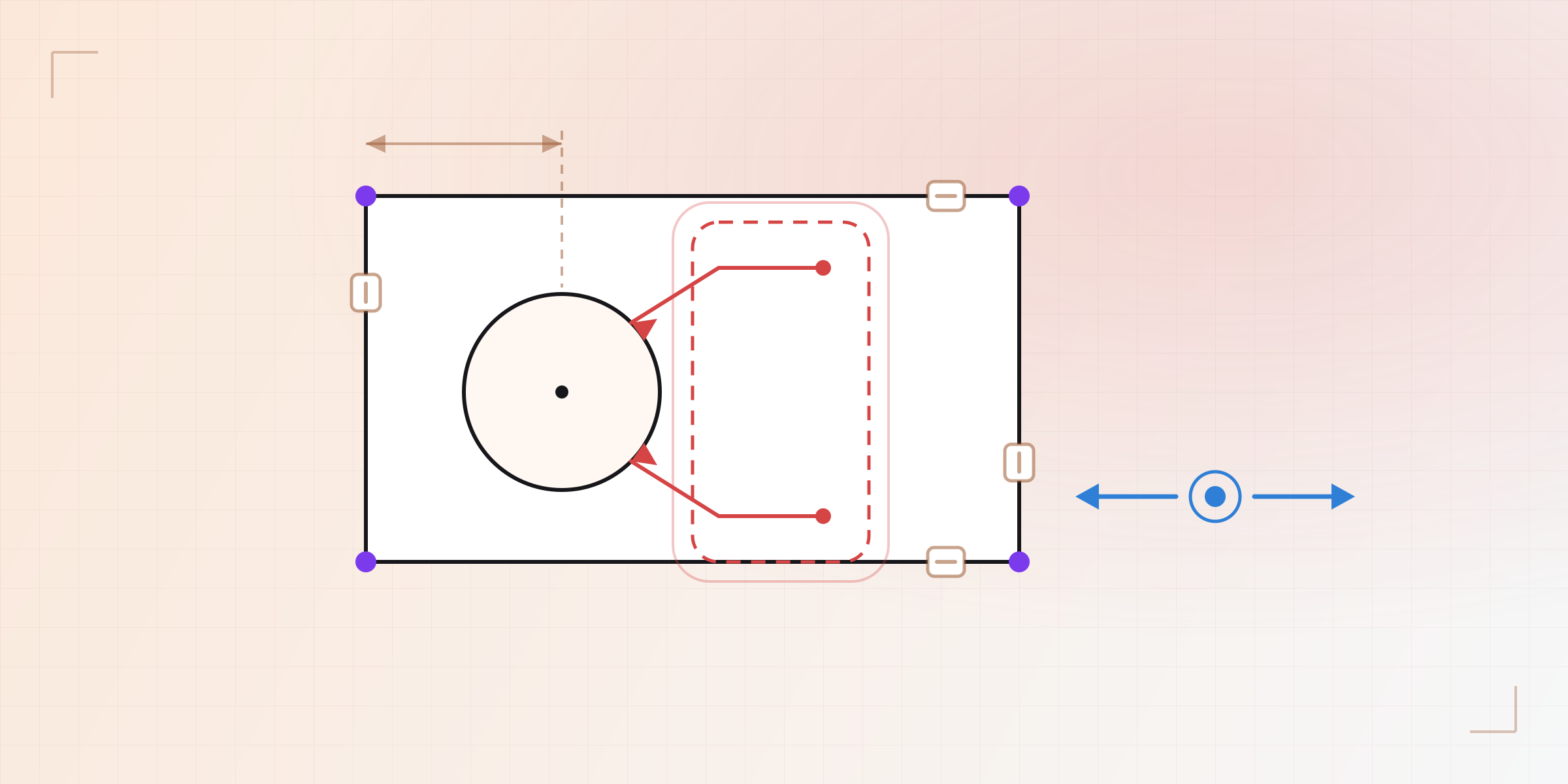
The same analysis that counts the DOF knows in which directions each point can move without breaking anything. In KapyCAD 2, when you hover over a point that still has freedom, the editor will draw those directions as arrows. A point tied to a horizontal will show an arrow along it. The end of a fixed-length line will show the direction it can swing. And a fully held one will show none.
It will be a quick way to answer "what am I still missing?": run the mouse over the points and look for arrows.
There's another freedom the arrows don't show: which branch, such as a tangent line that can touch the circle on one side or the other. That one will be handled by the "Flip" button from Part 5.
Underneath: rank, SVD and null space
You don't need any of this section to use the editor, but this is how it works inside, without heavy formulas.
Each constraint is written as one or more equations that are zero when it holds. The unknowns are the coordinates of the geometry. If you look at how each equation changes when you nudge each coordinate a little, you get a table of numbers with one row per equation and one column per coordinate: the Jacobian.
The rank of the Jacobian is how many rows are really independent, and the degrees of freedom are the columns minus the rank. The motions that change no equation form the null space; they're the ways the sketch can move without breaking anything, and that's where the arrows come from. The combinations of rows that cancel out form the left null space: if a constraint takes part in one of them, its equations can be written with other constraints' equations, so it's a candidate for redundancy, and that combination says with which ones.
To compute all of that we use the singular value decomposition (SVD), the numerically reliable way to get the rank and both null spaces at once. Before that we scale the table so a sketch in millimetres and one in metres are judged the same way, and we split it into independent blocks so that unconnected parts are analysed separately. The SVD of a large block costs a few milliseconds.
The rank alone can't call a constraint redundant because the Jacobian is a first-order approximation: it measures the slope of each equation. For the tangent line held on its circle, the distance the tangency measures changes with the square of the rotation, so its slope at that point is zero and the rank misses it. That's why we push the sketch far enough for that second-order effect to show, and why "safe to delete" is only said after checking.
One last caveat about conflicts. Some can be certified exactly: two fixed values that contradict each other, for instance. Others, nonlinear ones, only show up because a bounded solve can't satisfy them; the typical example is a triangle whose sides break the triangle inequality, which leaves no dependent row for the rank to see. For those, the deletion filter still finds the small set that won't solve, but internally we treat it as a suspicion, and a numerical failure with no further evidence is never turned into "over-constrained".
The last part changes subject: kapycode, your model as text.
Written by
Sergio
Building Kapy CAD — parametric 3D modelling for 3D printing, in the browser.


