September update: live patterns, snaps that make sense and real reference geometry
The first big batch of changes built from beta feedback. Pattern copies are geometry you can work with, drawing in a sketch does what you expect, reference planes stop being a chore, and a long list of the bugs that made you doubt the editor.
For a few weeks now, testers have been using the editor daily and sending back very long lists. This is the first release built almost entirely from that feedback. From now on we will publish a summary like this with every big batch of changes, dated rather than numbered.
New features
Sketch patterns are alive
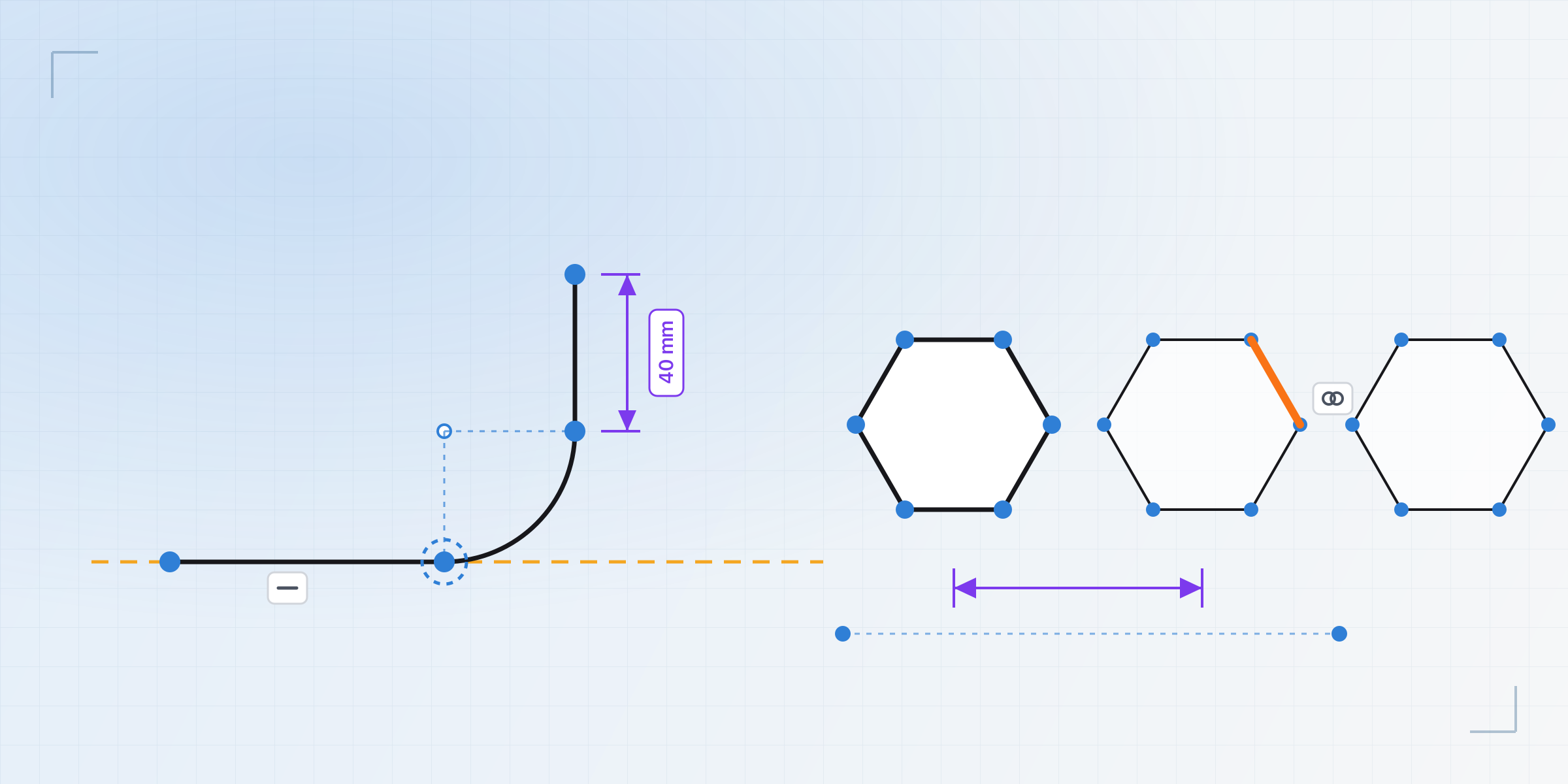
Until now the copies of a pattern were a drawing: you could see them and do nothing with them. Now a copy is real geometry: its points and edges light up under the cursor, they select with a click or a box, they snap the lines you draw nearby, and they take any constraint or dimension against the rest of the sketch. Drag a copy and the original moves with the whole pattern following. The parametric link never breaks: change the count, the angle or the mirror axis and everything falls back into place.
"Materialise" goes away with this, since it no longer added anything. And when you create a circular pattern or a mirror, the editor asks for the centre or the axis: pick a point or a line that already exists, or create it right there, and you see the copies before confirming.
Drawing with snaps that make sense
- Tangent, parallel and perpendicular now snap while you draw, with the same orange guide as horizontal and vertical, and leave the constraint behind.
- Several snaps at once. A vertical line ending on an existing point keeps both constraints, not just one.
- Ctrl or Alt while drawing turns every snap off: free stroke.
- In a chain of lines, press and drag from the last point to draw a tangent arc. And when you click on from an arc, the next line leaves tangent, as in any CAD worth the name.
Constraints you can touch
Any constraint selects with a click and opens a card saying what it is, what it joins, with a delete button; the Delete key removes it too. Each icon sits where it belongs (a tangency at the tangent point), dimension labels run parallel to the dimension line and outside the geometry, and both labels and icons can be dragged out of the way. Angle dimensions let you choose which angle they measure, and there is a horizontal/vertical constraint between two points.
Fewer keys to remember: Coincident (C) also covers point-on-line and
point-on-curve, Equal (E) works for lengths and radii, and Project moves
to P.
Real reference geometry
- With nothing selected, a Reference toolbar appears: planes, axes and points, each variant its own tool. If something is still missing, the editor asks for the face, edge or point in turn, and never picks for you.
- A plane can be built from another plane, by offset or by angle. The angled plane comes with a handle to rotate it by hand.
- Planes are no longer huge squares: they take the size of the face they come from, with a subtle grid, and while you are creating one it draws as a placeholder that stays out of the way.
- A new References window to hide, colour, rename and delete;
Vhides the selected reference. And the sketch tool now accepts reference planes directly.
3D tools
- Extrude can start "from a face" as well as at a distance, and when adding material it shows which bodies it joins in a list you can edit.
- Push face works on several faces, even across bodies.
- Project accepts any edge: ellipses, splines, intersection curves.
- Select something in 3D and the timeline dims the steps that have nothing to do with it; hover a step and you see what it touched, with the rest of the model translucent and its sketch in blue even when hidden.
Inside the sketch
Closed areas are softly shaded, the sketch status (degrees of freedom, over-constrained) is always readable bottom-right, a small control turns the view in 90° steps, fit view includes the visible bodies, the Bodies window stays available, and Customize gains a Sketch section to switch the grid or the axes off.
Interface improvements
- Pickers no longer need Shift: one click adds, another removes,
Cclears everything and Escape brings back what you had. - Escape cancels and Enter confirms in any open tool. Escape on an existing step leaves it exactly as it was before you opened it.
- Tools never pre-select an input you did not choose: a revolve asks for its axis, a pattern for its direction.
- Constraint icons have no box until you hover them; cards open where there is room, not always below.
- Sketch arcs and circles read round at any zoom.
- New, clearer icons for adding geometry to a pattern and removing it; and with a pattern selected the drawing tools no longer show up.
- The "max ≈ N mm" fillet hint is gone, since it was rarely right; after a failure the "Use N mm" button, which is exact, remains.
- "Disable sketch" is gone.
Bugs fixed
- Undo and redo after booleans, mirrors and sketch edits restore the exact state, names and colours included.
- A boolean keeps the original body: its name, colour and place in the list. If the result comes out in separate pieces, each piece is a body.
- Sketches that "jumped" to another face after a mirror, or stayed on the original when drawn on a pattern copy.
- Ghost edges between faces that should be one after extruding, revolving or combining; they broke fillets and projections.
- Push face up to a face with Add, and offsetting a face then cutting, failed with a kernel error. Cut "to face" now warns when the face does not cover the profile instead of failing silently.
- The camera that sometimes stopped rotating until a reload.
- Regions mis-detected when one rectangle sits flush with another.
- Sketch offset lost its tangencies when moved.
- Hiding a body no longer changes the geometry of an Add extrude.
As always, if something feels off, write to us. A good part of the list above started as a two-line message.
Written by
Sergio
Building Kapy CAD — parametric 3D modelling for 3D printing, in the browser.


